

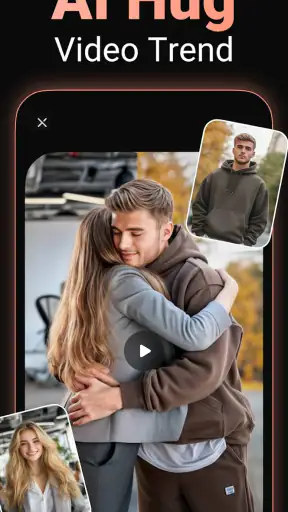
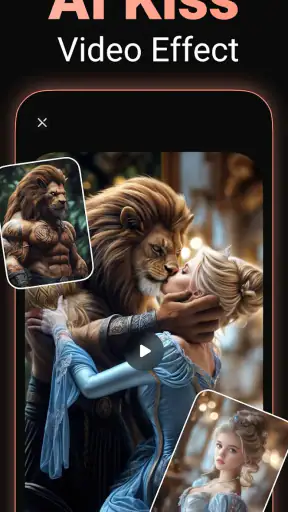
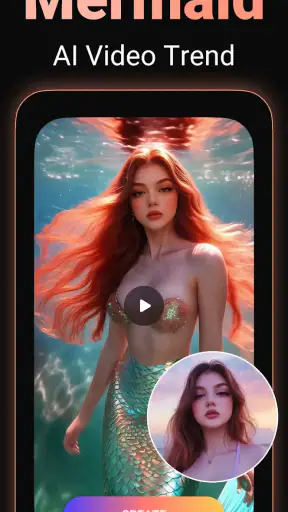
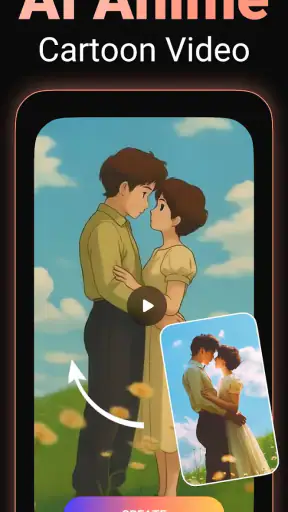
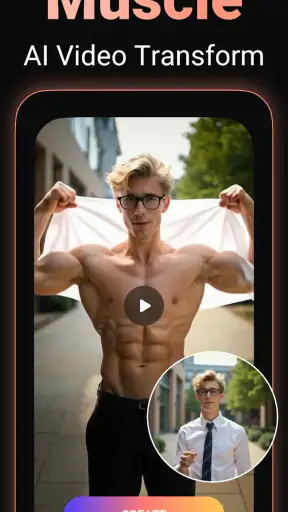
I approached AI Video Generator Viddo Maker as someone who wanted to turn ordinary images and short ideas into shareable video content without learning a full desktop editor. It belongs to the video players and editors category, but its appeal is less about traditional cutting and more about using artificial intelligence to transform prompts and pictures into stylized clips. That makes it interesting for quick experiments, social posts, visual jokes, character concepts, and personal projects where the starting material is more important than precise timeline control.
The app is free to install, carries a Mature 17+ age rating, and comes from AI Music AI Video Generator, AI Chat AI Girlfriend. Its popularity is easy to understand: it has passed five million installs and holds a 4.4 average from around 263 thousand ratings. Those figures suggest that it has found a broad audience, although they do not change the main question I had while using it: whether the generated result is actually useful after the novelty wears off.
From a rough idea to a finished clip
Starting with the right source material
The first important decision is not the prompt. It is the input. If I begin with a clear portrait, a well-lit object, or an image with a simple background, the app has a much better chance of producing something coherent. A crowded photo with several people, overlapping objects, or unusual angles gives the generator more chances to misunderstand what should move or remain still.
This is where the app feels different from a conventional mobile editor. In CapCut, iMovie, or another timeline-based tool, I can compensate for a weak photo by cropping it, layering it, adjusting its timing, and choosing exactly where an effect begins. Here, the source image carries much more responsibility. I would therefore prepare the image before opening the generator: crop away distractions, use a subject that is easy to identify, and avoid tiny details that need to survive a transformation.
That preparation is especially useful for the app’s image-to-video and character-oriented ideas. A clean front-facing image works better for a transformation than a group snapshot. A product photo on a plain surface is more practical for a promotional experiment than a busy desk. This sounds simple, but it is one of the most valuable lessons because artificial intelligence cannot reliably repair every weak starting point.
Choosing a direction instead of asking for everything
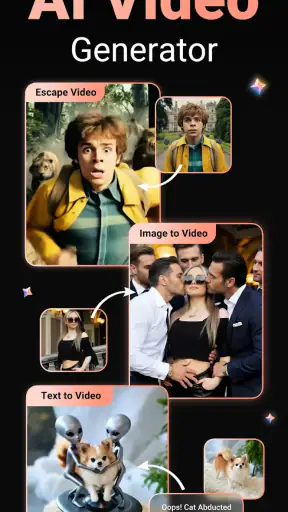
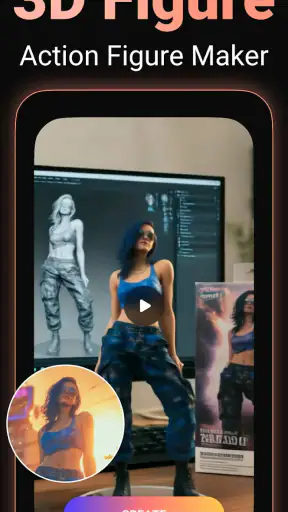
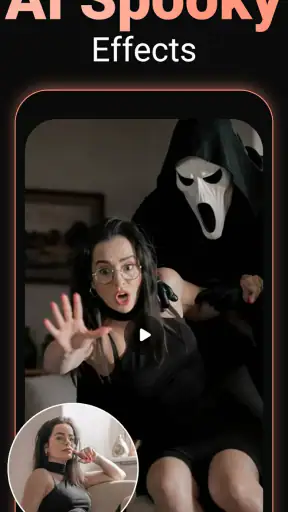
The app is built around several kinds of visual generation, including text-to-video concepts, action-figure styles, anime treatments, and other image-led transformations. I get better results when I decide what the clip is supposed to communicate before choosing a style. For example, “make this portrait feel like a collectible figure reveal” is a clearer creative goal than combining an anime look, a dramatic action scene, a music-video mood, and a product advertisement in one request.
A useful workflow is to make the first attempt deliberately conservative. I would keep the subject, setting, and mood close to the original image, then change only one visual idea at a time. If the result works, I can try a stronger style in a second pass. This gives me a way to tell whether a problem comes from the picture, the wording, or the selected effect instead of treating every disappointing result as random.
The text-to-video side is most appealing when I have an idea but no suitable footage. It can help me explore a visual concept before investing time in shooting or editing. However, I would not treat it as a replacement for a carefully planned production. Generated scenes are better suited to atmosphere, playful storytelling, and quick visual communication than to situations where a person, object, or movement must remain perfectly consistent from beginning to end.
Watching the first generation critically
My advice is to judge the first output as a draft, not as a finished video. Look at the subject’s identity, the direction of movement, the background, and the way the style affects important details. A clip can look impressive for its first second and still become awkward when a face changes, an object bends strangely, or the visual focus drifts away from the original idea.
This is also the point where patience matters. AI generation encourages quick tapping because the creative distance between an idea and a preview feels very short. Yet repeating the same request without changing the input or intention rarely solves the underlying problem. If a person’s hands are unclear, use a different image. If the background overwhelms the subject, simplify the source. If the style is too strong, return to a more restrained concept.
Building a practical handoff
The most realistic way to use this app is as one stage in a larger workflow. I would generate the imaginative part here, then move the resulting clip into a familiar editor for trimming, ordering, captions, sound, and final formatting. That handoff matters because an AI generator and a normal editor solve different problems.
Viddo Maker is useful when I need a visual starting point quickly. A conventional editor is better when I already have the footage and need control. If I am preparing a birthday message, I might turn a favorite photograph into a short animated moment here, then add a greeting and arrange it with other images elsewhere. If I am making a short social post, I can use the generated scene as an opening hook rather than forcing the app to handle the entire production.
This division of labor also protects the final result from a common mistake: expecting a single generated clip to carry a complete story. Short AI visuals often work better as an ingredient. A few seconds of transformation, a stylized reveal, or an unusual opening can add personality, while the surrounding structure comes from ordinary editing decisions that remain easier to control manually.
Everyday uses that make sense
Imagine I want to send a friend a playful birthday video but only have one old portrait. I could choose a clear image, try an action-figure or anime-inspired treatment, and use the generated result as a surprising opening. After that, I would add the personal message in another editor or within whatever sharing workflow I normally use. The value is not that the app creates a complete birthday film automatically; it gives a familiar photo a new visual role.
For a small seller, the same approach could help create a concept for a product post. A clean product image might become a short stylized reveal that attracts attention before the practical details appear. I would still inspect every frame carefully, because a generated effect that changes the shape or identity of the product can undermine trust. The app is stronger for mood and presentation than for conveying exact technical information.
Artists and hobbyists may enjoy it as a sketching tool. Instead of drawing a complete animation, I can test how a character or still illustration might behave in motion. That makes the app valuable during exploration, especially when I am looking for a direction rather than a polished final piece. The trade-off is that experimentation can consume more time than expected if I keep chasing a perfect version of an inherently variable result.
What the app does well
The strongest part of the experience is the low barrier between a visual idea and a preview. I do not need a camera setup, animation software, or a detailed editing background to begin. The combination of images, words, and recognizable styles makes it approachable for people who want to experiment rather than study production techniques first.
I also like the way the app encourages repurposing. A photograph that would normally remain in a gallery can become a stylized clip, a character concept, or a visual transition. That is more useful than a one-time novelty because it gives old material another purpose. The best outcomes come when I treat each image as a creative asset and ask what kind of transformation suits it.
Its large audience and 4.4 average rating indicate that this accessible approach resonates with many users. Still, popularity should not be confused with professional reliability. A person who wants fast, entertaining results may be very happy, while someone who needs exact continuity, repeatable branding, or frame-by-frame precision may find the same workflow restrictive.
Where the flow becomes frustrating
The first point of friction is unpredictability. A carefully worded idea can still produce a result that looks attractive but misses the intended action. This is not a small issue when the clip is meant to show a particular object, person, or message. I would always keep the original image and treat each generated version as disposable until I have inspected it.
The second issue is control. Traditional editors expose a timeline, layers, transitions, and exact adjustments. An AI-first workflow hides much of that control behind a generation step. That is convenient at the beginning but limiting near the finish. If I need a subject to enter at a precise moment, maintain the same appearance across several shots, or match a specific visual identity, I would choose a standard editor or a more specialized production tool instead.
There is also a cost consideration despite the free entry point. The app includes in-app purchases ranging from one dollar to 249 dollars per item. I would therefore explore the free experience carefully before committing to repeated generation or a larger purchase. AI creation can become expensive in practice when a user keeps retrying outputs, particularly if the goal is professional work rather than casual experimentation.
The Mature 17+ rating is another reason to think about the intended audience before sharing the app with younger users. Parents and educators should not assume that a visually playful generator is automatically suitable for every age group. I would keep that rating in mind when recommending it, especially for family devices or classroom projects.
How it compares with familiar alternatives
Compared with iMovie, this app is more imaginative and less predictable. iMovie is the better choice when I already have clips and want a dependable sequence with straightforward trimming and titles. Compared with CapCut, Viddo Maker is less about assembling a complete social video and more about producing an unusual visual component. CapCut generally makes more sense when captions, timing, music, and platform-ready editing are the main priorities.
Compared with a desktop editor, the difference is even clearer. Desktop tools demand more learning but reward that effort with precision. Viddo Maker trades precision for speed and accessibility. I would choose it when the question is, “What could this image become?” I would choose a conventional editor when the question is, “How do I make these exact shots fit together?”
It also differs from a fully manual animation workflow. Manual work is slower, but it gives me ownership over movement and continuity. The AI route is useful for discovering possibilities I might not draw or animate myself. The best choice depends on whether surprise or control matters more for the project.
Practical advice before committing to a project
I would begin with a small test rather than planning an entire campaign around the app. Use one image, one clear concept, and a short intended outcome. Check whether the visual identity survives the transformation and whether the result can be exported or handed off comfortably into the rest of your workflow. This prevents a common disappointment: discovering late that the generated style does not fit the surrounding material.
Keep several source images ready when the subject matters. A second portrait with better lighting or a simpler background may improve the result more than rewriting the prompt repeatedly. For product work, compare the generated clip against the original image and remove any version that changes important details. For personal projects, save the strongest draft before experimenting further so that a later attempt does not replace a usable result.
I would also separate creation from judgment. Generate a few possibilities, take a short break, and then watch them again with the intended viewer in mind. A strange effect may be entertaining in isolation but confusing in a message or advertisement. This small pause helps distinguish a genuinely effective idea from the initial excitement of seeing an image move.
Who should use it, and who should skip it?
I recommend it to curious creators, casual social users, people making personalized greetings, and anyone who wants to explore anime, action-figure, or other AI-led visual treatments without starting with complex software. It is particularly suitable when the source is a strong image and the desired result is expressive rather than technically exact.
I would be cautious about recommending it as the main tool for professional editing, documentary work, detailed product demonstrations, or projects that require consistent faces and objects across multiple shots. It is also not my first choice for someone who wants a complete timeline editor with predictable manual controls. In those cases, a standard mobile editor or desktop application will usually provide a smoother path from footage to final delivery.
My final take after following the workflow
AI Video Generator Viddo Maker is most successful when I use it as a creative launchpad: start with a carefully chosen image or a focused idea, generate a visual experiment, inspect it honestly, and then hand the useful part to a more controlled editing workflow. Its appeal comes from making transformations feel approachable, while its limitations appear when I ask for precision, continuity, or a finished production in one step.
The current release is version 4.3.9.1 and works on operating systems from version 9 onward, so the practical starting point is straightforward for compatible devices. I would try the free experience with modest expectations, keep an eye on the purchase range, and avoid treating every attractive preview as ready to publish.
My recommendation is therefore positive but specific: choose it if you want to turn still images and simple concepts into surprising video ideas. Skip it if your priority is exact editing control. Used in the right place, it can add a memorable visual spark; used as a replacement for a full editor, it is likely to feel more frustrating than freeing.


